
The Setup and Feeling the Beat
Many metronomes produce a click that doesn’t sound very musical. The Woodshed Metronome offers an alternative to maintaining a collection of backing tracks with different grooves, because it does more than provide a steady beat. It’s a groove‑focused practice environment with a range of rich beat sounds that lets you craft a backing rhythm you’ll enjoy playing along with.
The first part of this series introduces the basic setup and the one thing everything else rests on: finding a song’s tempo by ear. Plenty of software can tell you a track's Beats Per Minute (BPM), and that’s fine, but the Woodshed Metronome encourages you to feel the beat and determine the BPM yourself.
Open the Woodshed Metronome and follow along. It takes about ten to fifteen minutes. But be warned: playing around with the Woodshed Metronome can be slightly addictive; you may spend longer.
Step 1: The Setup
The metronome ships with a few things switched on to make it useful straight out of the box. For this tutorial, we want a simple beat.
- Untick Subdivisions (that's the off-beats between the beats — we'll get to those in a later guide).
- Untick Count-In (the spoken "1, 2, 3, 4" before it starts).
- Leave Downbeat Accent ticked for now.
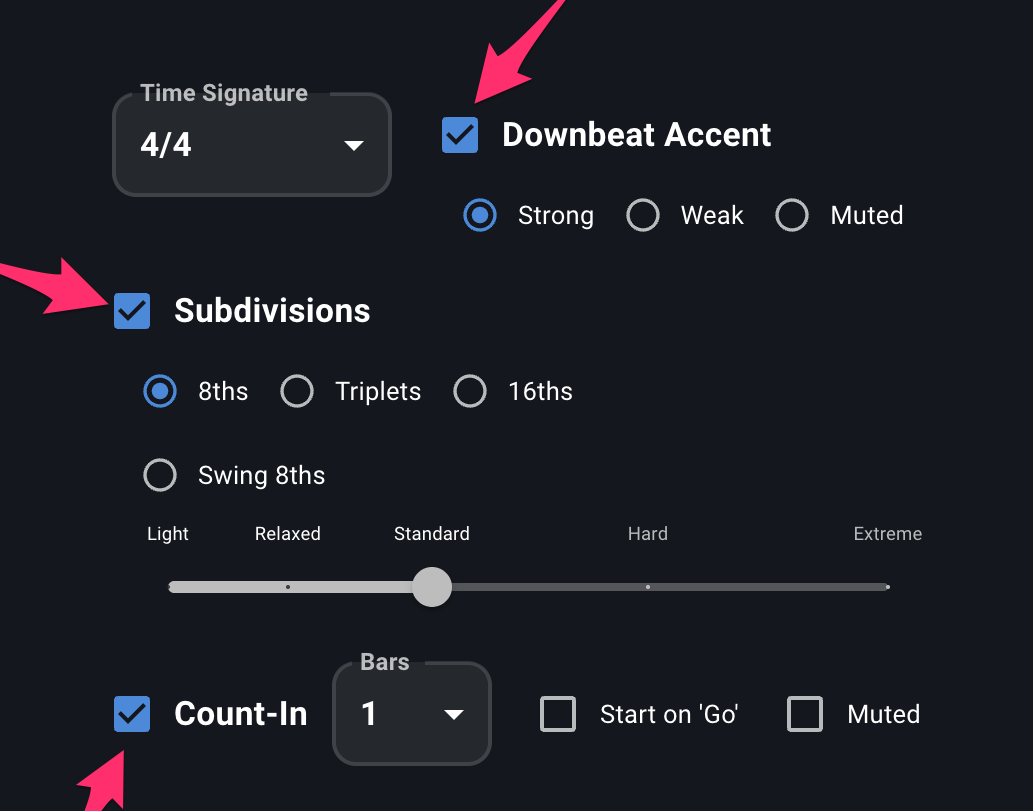
Leave the tempo where it starts — 85 BPM — and leave the time signature at 4/4.
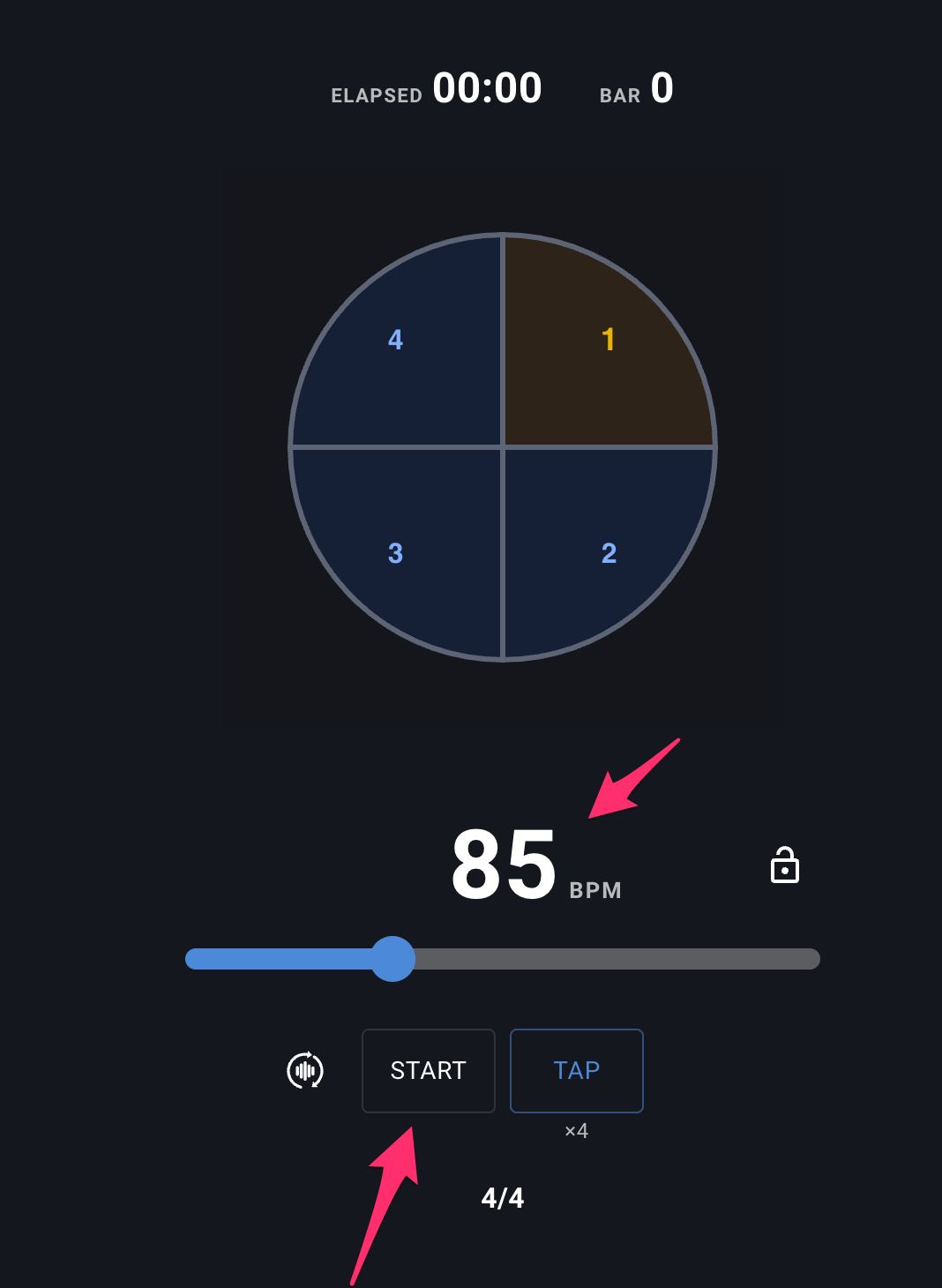
Now press Start. The Space bar does the same job if you’ve got a keyboard attached. You can also go to Settings and enable ...
Click here for a full list of the default settings.
Step 2: Listen to what the accent is doing
With Downbeat Accent on, one click in every four sounds different: stronger, heavier. That’s beat 1, the downbeat, and it marks the start of each measure (or bar, same thing).
Now untick Downbeat Accent and listen again.
Hear the difference? Without it, you get an undifferentiated stream of quarter notes: click-click-click-click, forever, with no landmarks. Your ear has nothing to hold on to. Tick it back on, and the clicks immediately organise themselves into groups of four.
That's the whole point of a time signature. The default here is 4/4: four beats to a bar, and the quarter note gets the beat. It's the meter most blues, rock, soul and pop is in. The top number tells you how many beats are in a bar; the bottom tells you what kind of note counts as a beat. If that's new to you, the app's FAQ has a fuller explanation, but for now, "four clicks, then it comes round again" is all you need.
One nice detail while you're here: the accent has a strength setting: Strong, Weak or Muted. Muted is the interesting one. It leaves beat 1 silent while beats 2, 3 and 4 play normally, which is a brutally honest test of whether you actually feel "1" or whether you've just been waiting to be told. Try it for thirty seconds.
While you’re at it, scroll down the setup pane and try different beat Sounds. Under that, you'll find you can also adjust the tone, bass, midtone, and treble of the Beats and Downbeat Accents. The volume control is relative to your computer, tablet or phone’s volume. It's only useful to adjust the volume relative to the Beats and the Downbeat Accent, since we’ve unchecked Subdivisions and Count-in for now.
Don’t get too carried away, or this post will take longer than 10 mins to complete.
Step 3: Feel the groove
This is the part some people skip, and it’s the part that matters.
Turn the accent back on and just sit with it. Tap your foot, clap, count or sing along on every click, putting a bit more weight on the accented one.
You’re moving the tempo out of your ears and into your body, so that keeping time stops being something you monitor and becomes something you feel. Hearing the beat, whether it’s the metronome or the band, and feeling the beat are skills that need to coexist. Every player who sounds relaxed and in the pocket does this, whether or not they describe it exactly that way.
Give it a couple of minutes. It’s a worthwhile exercise.
Step 4: Find a real tempo by ear
Now let's use it on a record. Put on Albert King’s "Born Under a Bad Sign"
Listen first, without the metronome. Find the pulse, the thing you'd tap your foot to, or nod your head to. Notice how heavy and unhurried it is; that dragging quality is a big part of why the track works.
Now start the metronome at 85 and play the track alongside it. Too fast? Too slow? Drag the tempo slider (it covers 10–250 BPM), or click the big number and type a value, or nudge it with the arrow keys — ↑/→ up, ↓/← down, hold to ramp, Shift for ±10.
Keep adjusting until the clicks lock onto the band. When it’s right, the accent will sit on beat 1 of the bar and stay there instead of gradually sliding off.
What BPM did you land on? It should be somewhere around 92. If you got something about twice as much, you may have been tapping the off-beats as well as the beats. If you got something near about half, you're feeling it "in 2", counting only beats 1 and 3. We chose this song because the track’s groove is so strong, you likely won't run into those issues.
Now here’s the interesting part. Leave it running and listen for a full minute, and the click will start to drift against the record, not because you set it wrong, but because the band drifts. Played by King’s rhythm section, the legendary Stax Records house band Booker T. & the M.G.’s, the tempo wanders between roughly 91 and 95 BPM depending on the section.
A metronome is absolutely steady, and almost no record performed by humans ever is. The click is there to build your internal clock, not to pass judgment on Albert King’s rhythm section, and the slight push and drag between a band and a fixed grid is a large part of what makes a record feel alive rather than programmed.
Step 5: Let Tap do it for you
Hunting for a tempo with the slider is a good ear-training exercise, but it isn’t the most effective way. That’s what the Tap button is for, and we hope you find that Woodshed's version does it very well.
Here's how to use it:
- Stop the metronome. Tap only works while it's stopped.
- Tap the button in time with the music — at least four taps. The caption counts you down: ×4, ×3, ×2, ×1.
- Tempo adjustment starts with the second tap. The big number and the slider move as you go, so you can see it converging.
- Keep tapping as long as you like. The reading is weighted to your last eight beats, so it keeps refining while you play.
- Stop. After seven seconds of silence, the session ends automatically, or press the round icon to the right of the Tap button to finish immediately.
- Press Start.
When you have a moment, try Tap with other songs. You can check your results with sites like ++Tunebat++, GetSongBPM, SongBPM.
If you tap fewer than four times, the tempo reverts to its previous setting. That’s deliberate, so a stray tap or two can’t wreck your setting.
The nice part is that it’s forgiving in the ways human tapping is actually unreliable. Miss a beat, and it recognises the gap as two beats rather than halving your tempo. Double-tap by accident and the extra hit is ignored. React late on your very first tap, which many do, and that first interval is excused rather than dragging the average down. And if you genuinely change your mind and start tapping a different tempo, it’ll follow you there after three beats rather than averaging the two together. The algorithm even compensates for delay inherent in clicking or touching the button, which is a significant issue at fast tempos. We’re proud of the patent-pending algorithm and the functionality we’ve developed, and we'd like to hear any thoughts, suggestions, or issues you have.
Step 6: Read your steadiness score
Watch the icon next to the Tap button while you're tapping. From your fourth tap it turns green, yellow or red, with one word underneath:
- steady — green. Your taps are consistent.
- uneven — yellow. Recognisably a tempo, but wobbling.
- erratic — red. Something's off: either you're genuinely all over the place, or a couple of taps landed nowhere near the beat.
When the session ends, the word is replaced by a number from 1 to 100. That's your steadiness score, and it's worth knowing how to read it:
- 90+ is drummer-tight.
- 80 is steady — a perfectly good result.
- 60 is the floor of what still counts as "a tempo".
So 78 is not a failure. Trained musicians tapping unpaced typically sit around 4–5% variation, which is right around the low 80s. If you’re scoring in the 70s, you're normal, and the research suggests an hour of deliberate practice is enough to move a beginner up a whole notch.
Try it on "Born Under a Bad Sign" again: tap along with the record for a dozen beats and see both what tempo you get and how steady you were. Then compare that to the number you found by hand in Step 4. They should be close.
When Tap is greyed out
Three situations, all intentional:
- The metronome is running. Stop it first.
- The padlock beside the tempo is engaged. It locks the slider against accidental nudges, and disables Tap along with it. Unlock to tap.
- The BPM ramp is on. A ramp always starts a run at its own Start BPM, so a tapped tempo would be silently thrown away the moment you press Start. Rather than let that happen, Tap switches off, and the caption tells you why. In the Practice Loop section, there is a Use Tap to advance the ramp checkbox, where Tap has a different job entirely. We’ll also cover that in a later post.
What you’ve got so far
A bare click, an accent that tells you where the bar begins, a tempo you found by ear, and a better way to find the next one. That’s a great start.
In Part 2 we'll turn Subdivisions back on and get into the thing that matters most for blues players: the difference between straight eighths and Swing 8ths, and how far you can push the swing before it stops being a shuffle and starts becoming something else.
Woodshed - Groove - Sleep - Repeat